


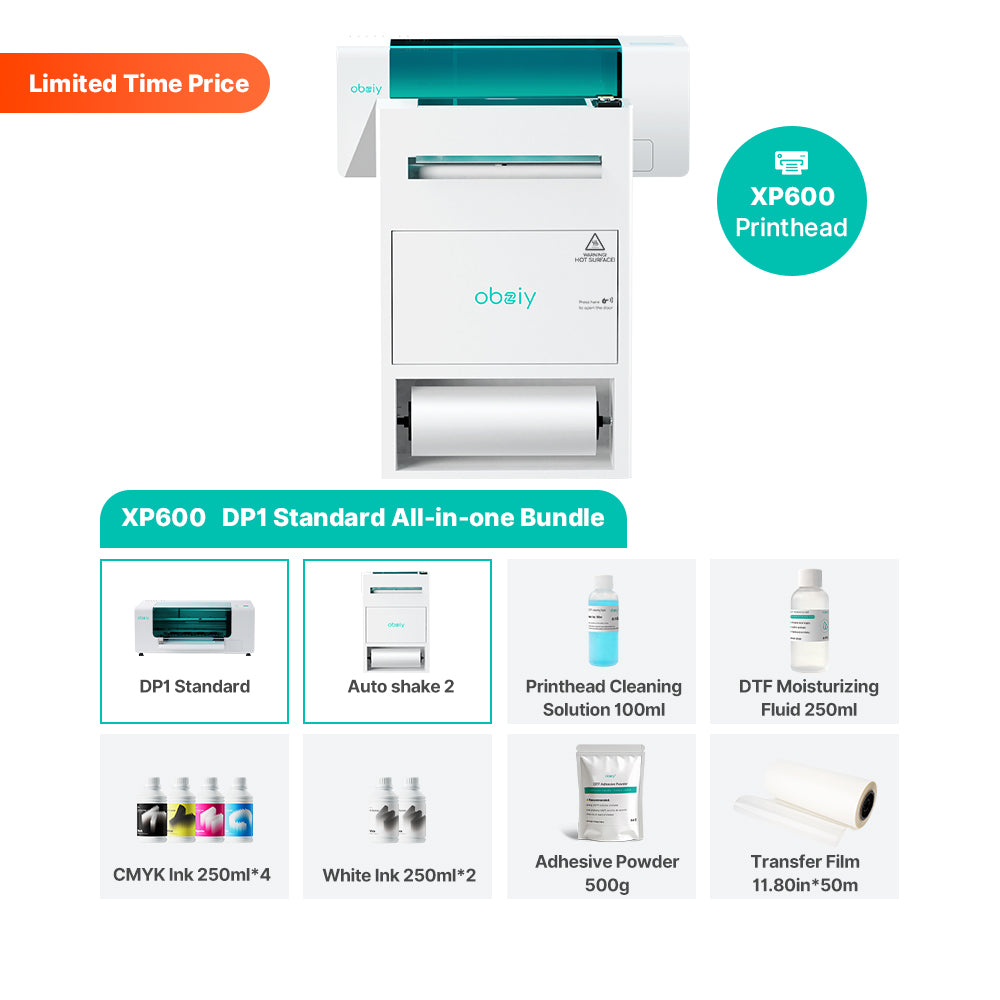
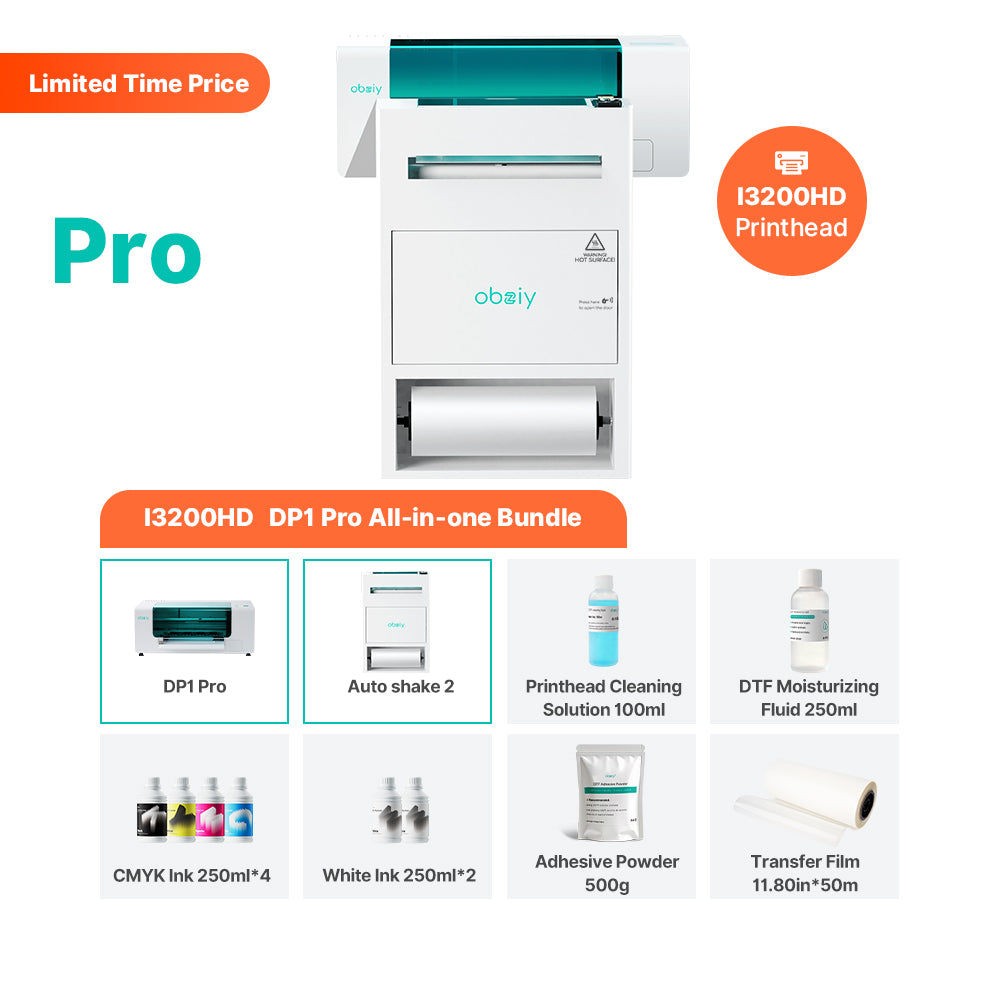
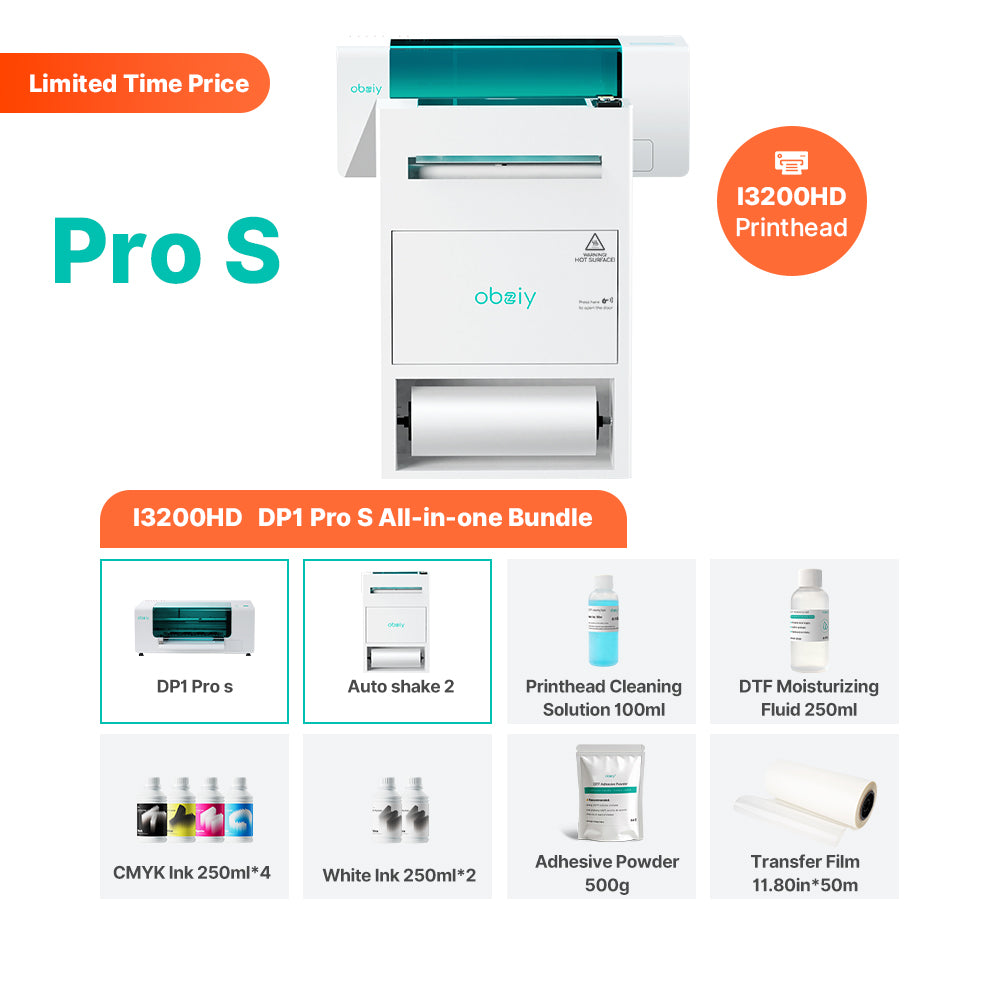

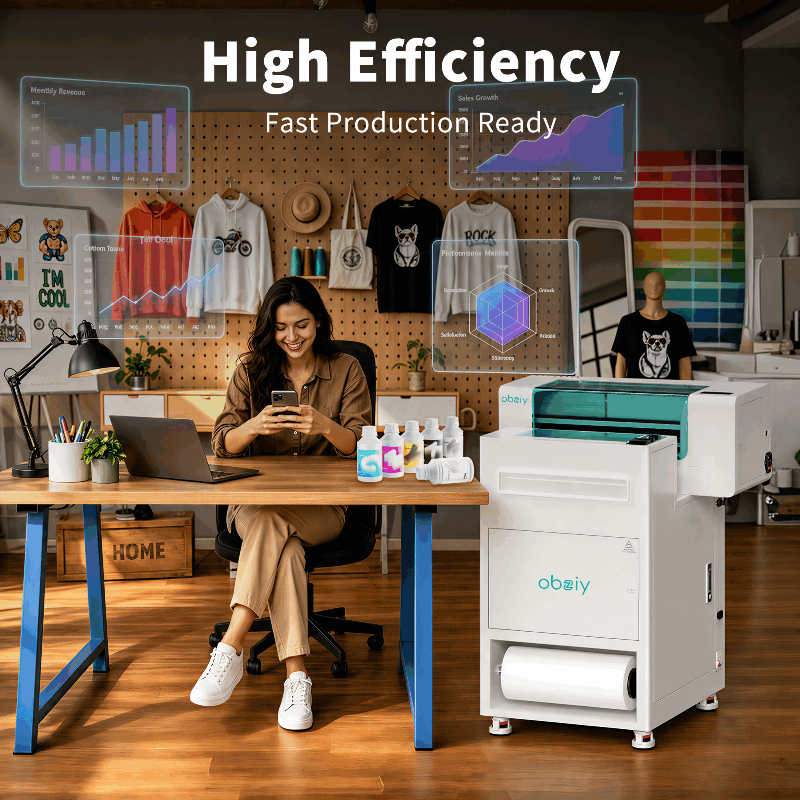
Product highlights

30% Faster 60°Slant Arch

3600 DPI

Print&Cure&Shake

15"Multi-Fit

24/7 Self-Sustain & 1-Click TravelMode

360° All-Access Design

3.47ft²
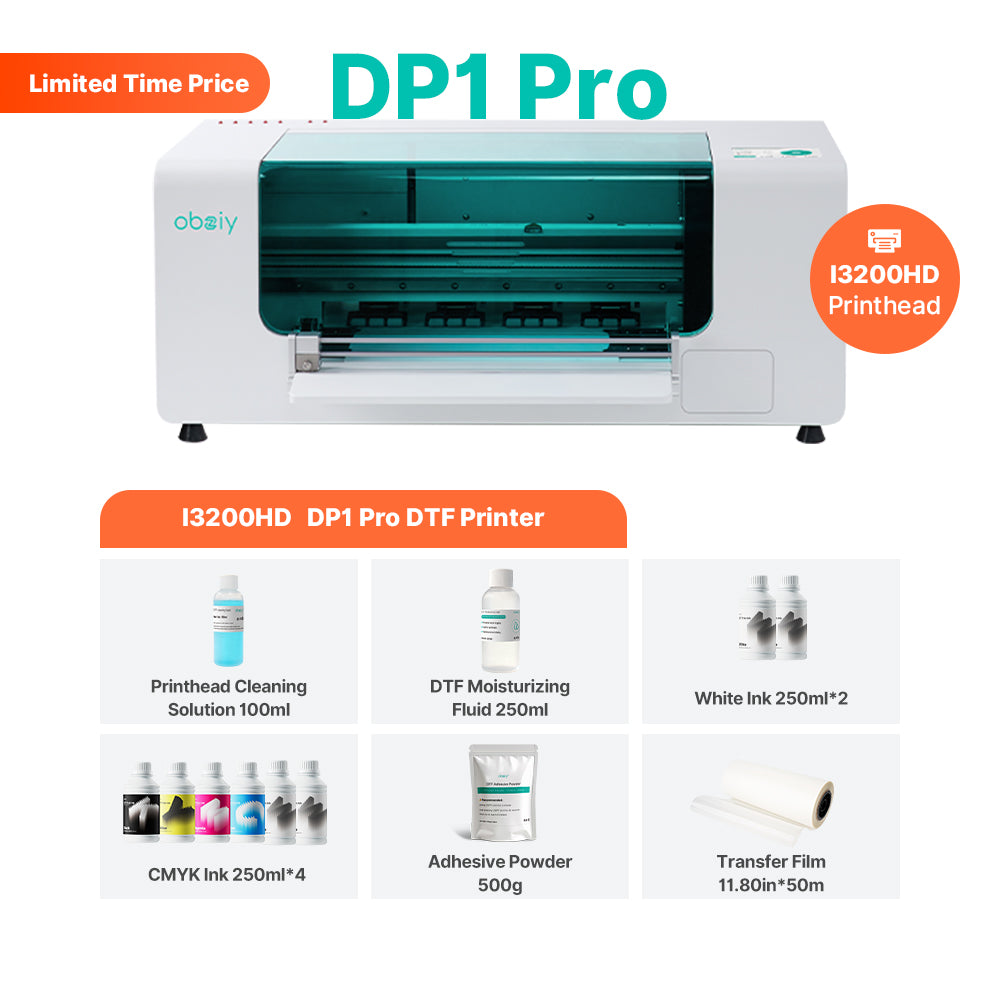
obziy DP1 Series: World's Fastest Single-Head 15" All-in-One DTF Printer with 8-Pass Precision

The Powder Shaker & Curing Machine is temporarily out of stock. If you are purchasing the All-in-One bundle, you can still place your order now—we’ll ship the printer first, and send the Powder Shaker & Curing Machine separately as soon as it arrives at our warehouse.

Checkout securely with

Product highlights
30% Faster 60°Slant Arch
3600 DPI
Print&Cure&Shake
15"Multi-Fit
24/7 Self-Sustain & 1-Click TravelMode
360° All-Access Design
3.47ft²
Peace of Mind Guarantee:
- 1-on-1 Remote Setup Guidance
- Lifetime Tech Support
- US Local Warehouse Delivery in 3~7 Business Days.
- Free Shipping to US
Option Breakdown

Shipping Policy
- We currently provide shipping services within the contiguous United States (lower 48 states) only. Sales and shipping to other international regions are under planning for future expansion.
- Processing Time: Orders are processed and shipped from our local warehouses within the United States within 1-3 business days.
- Shipping Time: Once shipped, orders typically arrive within 3 to 7 business days.
- Split Shipments: Please note that if you purchase ink, powder, or other consumables together with a machine, they will be shipped separately from the machine in compliance with transportation regulations. Therefore, delivery times for these items may vary.
Return Policy
Return & Refund Policy
At obziy, customer satisfaction is our top priority. We strive to offer a fair, transparent, and hassle-free return and refund process. Please read our policy below carefully before making a purchase or initiating a return.
- If you are unsure about needing the machine, please do not use it, as this may void your return and exchange rights.
- Please perform necessary maintenance and do not perform any unauthorized operations, otherwise you may lose return, exchange, and warranty rights.
- Keep the original machine packaging, as its loss may affect the normal return process.
1. Order Cancellation
- Before Shipment: You may cancel your order at any time before it has been shipped by contacting our customer support team at support@obziy.com. A full refund will be issued to your original payment method.
- After Shipment: Once an order has been shipped, it cannot be canceled. If you no longer wish to keep the item, please follow our standard return process upon delivery.
2. 30-Day Return Eligibility & Conditions
We accept returns or exchanges within 30 calendar days from the date of delivery, subject to the following conditions based on product category:
A. Hardware & Equipment (DTF Printers, Ovens, Heat Press Machines)
- Unopened & Unused Condition: To be eligible for a return, machines must be in their original, unopened packaging, complete with all accessories, user manuals, power cords, and protective foam packaging.
- CRITICAL NOTE ON PRINTERS: If a DTF printer has been filled with ink, inked through the tubes, or used, it CANNOT be returned or exchanged under personal preference reasons. Once ink is introduced, the machine cannot be resold as new.
B. Consumables & Accessories
- Consumables (DTF Inks, Transfer Films, Powders, Cleaning Solutions) must be completely unopened, factory-sealed, and in resalable condition. Opened liquid or powder products are strictly non-returnable due to safety and quality control standards.
3. Return Shipping & Fees
A. Returns for Personal Reasons (Buyer's Remorse / Ordered by Mistake)
If you wish to return a product due to personal reasons (e.g., changed your mind, wrong model ordered, no longer needed):
- The buyer is responsible for all return shipping costs and must provide tracking information/proof of delivery.
- Original shipping charges and handling fees paid at checkout are non-refundable.
- A 10% to 15% restocking fee may be deducted from your final refund if the outer box is opened or inspected upon return.
B. Damages and issues
Please inspect your order upon reception and contact us immediately if the item is defective, damaged or if you receive the wrong item, so that we can evaluate the issue and make it right.
- Please report the issue to support@obziy.com within 7 calendar days of delivery, including order details, photo, and video evidence of the defect.
- If your request is made within 7 days of receipt, Obziy will cover the return shipping costs.
-
If your request is made 7 or more days after receipt, the customer is responsible for return shipping costs.
Note: Issues arising from improper operation, human error, failure to follow maintenance guides, or third-party modifications are not covered under defective returns (please refer to our Warranty Policy for repairs).
4. Non-Returnable & Non-Refundable Items
The following items cannot be returned or refunded once purchased/delivered:
- Printers that have been filled with ink or used.
- Opened or unsealed consumables (DTF Ink, Film Rolls, TPU Powder, Cleaning Kits).
- Digital software products and activation keys (e.g., ZRIP Activation Codes).
- Service Plans (e.g., obziy Care Plans) once activated or beyond 30 days.
- Clearance items, refurbished items (unless defective upon arrival), or Gift Cards.
5. How to Initiate a Return
- Contact Support: Email support@obziy.com within 30 days of receiving your order with your Order ID, reason for return, and clear photos/videos of the item and its packaging.
- Receive RMA & Address: Once approved, our team will issue a Return Merchandise Authorization (RMA) number and the designated return warehouse address. (Do NOT send items back without prior approval, as unapproved returns will be rejected.)
- Pack Safely: Pack the product securely in its original packaging. Ensure all accessories and original components are included.
- Ship & Track: Send the package back using a traceable shipping carrier and share the tracking number with us.
US Return Warehouse Address:
13052 Jurupa Ave, Fontana, CA 92337, United States
(Note: For machine repairs or technical servicing, please contact support to receive regional technical center routing.)
6. Refund Processing Time
Once your returned package is received and inspected at our warehouse, we will notify you via email regarding the approval or rejection of your refund.
- If approved, refunds will be processed back to your original payment method within 3–7 business days.
- Estimated financial institution posting timeframes:
- Credit / Debit Cards: 3–7 Business Days
- PayPal Account / Credit: 2–5 Business Days
- Klarna / Afterpay / BNPL: According to provider processing schedules.
7. Exchanges
The fastest way to ensure you get the product you want is to return the item you have (once approved) and place a new purchase separately for the desired item.
Contact Us
If you have any questions about our Return & Refund Policy, please feel free to reach out:
- Email: support@obziy.com
- WhatsApp Support: +86 18127089332
- Business Hours: Mon–Fri, 9:00 AM – 6:00 PM (GMT+8)
Warranty Policy
Standard Warranty
obziy provides a standard warranty covering specific components of the product under defined conditions:
DTF Printer
-
Mainboard: Includes a 6-month warranty.
-
Non-User-Induced Issues: One free mainboard replacement is provided.
-
Shipping Costs: obziy covers shipping costs for replacements within the first month of receipt. After one month, the customer is responsible for all shipping costs.
-
User-Induced Issues: Free lifetime diagnostic support is offered; paid repair service is available.
-
-
Print Head: Includes a 6-month warranty.
-
Non-User-Induced Issues: One free print head replacement is provided.
-
Shipping Costs: obziy covers shipping costs for replacements within the first month of receipt. After one month, the customer is responsible for all shipping costs.
-
User-Induced Issues: Free lifetime diagnostic support is offered; paid repair service is available.
-
-
Entire Unit (excluding mainboard & printhead): Includes a 12-month warranty.
-
Non-User-Induced Issues: Free replacement of the faulty part is provided.
-
Shipping Costs: obziy covers shipping costs for replacements within the first month of receipt. After one month, the customer is responsible for all shipping costs.
-
User-Induced Issues: Free lifetime diagnostic support is offered; paid repair service is available.
-
Other Machines (Non-DTF Printers)
-
AutoHP1 Auto Heat Press
-
Auto Shake1 DTF Oven
-
Oven
-
Non-User-Induced Issues: One free replacement of faulty parts is provided.
-
Shipping Costs: obziy covers shipping costs for replacements within the first month of receipt. After one month, the customer is responsible for all shipping costs.
-
User-Induced Issues: Free lifetime diagnostic support is offered; paid repair service is available.
⚠️ Warranty Disclaimer
The product warranty (including any return or replacement claims) will automatically become void if any machine damage is caused by the use of third-party consumables or accessories (including but not limited to ink, hot-melt powder, DTF film, filter elements, or any other non-obziy branded consumables or accessories); such damage is strictly excluded from any warranty coverage.
Additionally, any product failure resulting from operation or maintenance that does not comply with obziy’s guidelines is not covered under this warranty.
Warranty Exclusions
To the extent permitted by applicable law, obziy shall not be held liable under the warranty in the following situations. If you encounter any of these issues, please contact customer support for assistance:
-
Products or components outside the warranty period.
-
Products purchased through unauthorized channels or resold.
-
Normal wear and tear, discoloration, or consumption during use.
-
Damage from incorrect use, maintenance, or storage—including operational error, unreasonable use, improper connection/removal of devices, physical impact, exposure to unsuitable temperatures/chemicals/liquids, pest damage, etc.
-
Damage from installation, repair, or modification by any party not authorized by Obziy.
-
Damage resulting from unauthorized modification, disassembly, or failure to follow official manuals.
-
Products with altered, modified, or removed identification labels.
-
Lack of valid receipt or proof of warranty eligibility.
-
Malfunctions due to unauthorized or non-standard software.
-
Damage from use of unauthorized third-party parts.
-
Failures caused by viruses, hacking, or malicious infringement.
-
Malfunctions due to force majeure or accidents.
-
Damage occurring during return shipping for repair.
-
Any issue not caused by a defect in the product.
Get Help & Support
1、Submit your requests through 1 of the following after-sales channels:
- Online Chat
- Help Center
- Email:support@obziy.com
- SNS Group
2. Prepare your materials following the list:
- Order Number
- SN number
- Fault Description (Text): Please describe the issue in detail to help us understand and assist you as quickly as possible.
- Pictures / Videos: Upload images or a video to help us better visualize the problem.
- Steps Already Tried: Let us know what troubleshooting steps you’ve already taken—this helps us diagnose and resolve the issue more efficiently.
3. After You Contact Us
Terms of Service
This website is operated by obziy. Throughout the site, the terms “we,” “us,” and “our” refer to obziy. We offer this website, including all information, tools, and services available from this site, to you, the user, conditioned upon your acceptance of all terms, conditions, policies, and notices stated here.
By visiting our site or purchasing something from us, you engage in our “Service” and agree to be bound by the following terms and conditions (“Terms of Service,” “Terms”). These Terms of Service apply to all users of the site, including browsers, vendors, customers, merchants, and content contributors.
Please read these Terms of Service carefully before accessing or using our website. By accessing or using any part of the site, you agree to be bound by these Terms of Service. If you do not agree to all the terms and conditions of this agreement, you may not access the website or use any services.
Any new features or tools added to the current store will also be subject to the Terms of Service. You can review the most current version of the Terms of Service at any time on this page. We reserve the right to update, change, or replace any part of these Terms of Service by posting updates and/or changes to our website. It is your responsibility to check this page periodically for changes. Your continued use of or access to the website following the posting of any changes constitutes acceptance of those changes.
Our store is hosted on Shopify Inc. They provide us with the online e-commerce platform that allows us to sell our products and services to you.
1. Online Store Terms
By agreeing to these Terms of Service, you represent that you are at least the age of majority in your state or province of residence. You may not use our products for any illegal or unauthorized purpose, nor may you violate any laws in your jurisdiction, including but not limited to copyright laws. You must not transmit any worms, viruses, or any code of a destructive nature. A breach or violation of any of these Terms will result in an immediate termination of your Services.
2. General Conditions
We reserve the right to refuse service to anyone for any reason at any time.
You understand that your content (not including credit card information) may be transferred unencrypted. Credit card information is always encrypted during transfer over networks. You agree not to reproduce, duplicate, copy, sell, resell, or exploit any portion of the Service without our express written permission. The headings used in this agreement are for convenience only and will not affect the interpretation of these Terms.
3. Accuracy, Completeness, and Timeliness of Information
We are not responsible if information on this site is not accurate, complete, or current. The material is provided for general information only and should not be relied upon as the sole basis for making decisions. Any reliance on the material on this site is at your own risk. This site may contain historical information, which is provided for your reference only. We reserve the right to modify the contents of this site at any time, but we have no obligation to update any information. It is your responsibility to monitor changes to our site.
4. Modifications to the Service and Prices
Prices for our products are subject to change without notice. We reserve the right to modify or discontinue the Service at any time without notice. We will not be liable to you or any third party for any modification, price change, suspension, or discontinuance of the Service.
5. Products or Services
Certain products or services may be available exclusively online and may have limited quantities. They are subject to return or exchange only according to our Return Policy. We have made every effort to display the colors and images of our products as accurately as possible, but we cannot guarantee that your computer monitor's display will be accurate.
We reserve the right, but are not obligated, to limit the sales of our products or Services to any person, geographic region, or jurisdiction. We also reserve the right to limit the quantities of any products or services that we offer. All product descriptions and pricing are subject to change at our sole discretion. Any offer for any product or service on this site is void where prohibited. We do not warrant that the quality of any products, services, or information will meet your expectations, or that any errors in the Service will be corrected.
6. Accuracy of Billing and Account Information
We reserve the right to refuse any order you place with us and may, at our sole discretion, limit or cancel quantities purchased per person, household, or order. You agree to provide current, complete, and accurate purchase and account information for all purchases. You agree to promptly update your information, including your email address and credit card details, so we can complete your transactions and contact you as needed.
7. Optional Tools
We may provide you with access to third-party tools over which we have no control or input. You acknowledge and agree that we provide access to such tools “as is” and “as available” without any warranties or endorsements. We have no liability arising from your use of these optional third-party tools. Your use of any optional tools is entirely at your own risk and discretion.
In the future, we may offer new services and/or features through the website, which will also be subject to these Terms of Service.
8. Third-Party Links
Certain content, products, and services available via our Service may include materials from third parties. Third-party links on this site may direct you to websites not affiliated with us. We are not responsible for examining or evaluating the content or accuracy of these materials, and we do not warrant and will not have any liability for any third-party materials or websites.
We are not liable for any harm or damages related to the purchase or use of goods, services, or resources from any third-party websites. Please review the third party's policies and practices carefully before engaging in any transaction.
9. User Comments, Feedback, and Other Submissions
If you send us comments, creative ideas, suggestions, or other materials, you agree that we may, at any time and without restriction, edit, copy, publish, distribute, translate, and otherwise use them in any medium. We are under no obligation to maintain any comments in confidence, pay compensation for them, or respond to them.
We may, but have no obligation to, monitor, edit, or remove content that we determine to be unlawful, offensive, threatening, libelous, defamatory, or otherwise objectionable. You agree that your comments will not violate any right of any third party, or contain libelous, unlawful, or obscene material. You are solely responsible for any comments you make and their accuracy.
10. Personal Information
Your submission of personal information through the store is governed by our Privacy Policy.
11. Errors, Inaccuracies, and Omissions
Occasionally, there may be information on our site or in the Service that contains typographical errors, inaccuracies, or omissions. We reserve the right to correct any errors, inaccuracies, or omissions and to change or update information or cancel orders if any information in the Service or on any related website is inaccurate at any time without prior notice. We have no obligation to update, amend, or clarify information except as required by law.
12. Prohibited Uses
In addition to other prohibitions in the Terms of Service, you are prohibited from using the site or its content:
-
For any unlawful purpose.
-
To violate any international, federal, or state regulations.
-
To infringe upon or violate our intellectual property rights or the rights of others.
-
To harass, abuse, insult, harm, or discriminate.
-
To submit false or misleading information.
-
To upload or transmit viruses or malicious code.
-
To collect or track the personal information of others.
-
To spam, phish, or scrape.
-
To interfere with the security features of the Service.
We reserve the right to terminate your use of the Service for violating any of the prohibited uses.
13. Disclaimer of Warranties; Limitation of Liability
We do not guarantee, represent, or warrant that your use of our service will be uninterrupted, timely, secure, or error-free. You expressly agree that your use of the service is at your sole risk. The service and all products and services delivered to you are provided 'as is' and 'as available,' without any warranties or conditions.
In no case shall obziy, our directors, employees, or affiliates be liable for any injury, loss, claim, or any direct, indirect, or consequential damages of any kind, including lost profits, lost revenue, lost savings, or loss of data, whether based in contract, tort, or otherwise, arising from your use of the service or any products.
14. Indemnification
You agree to indemnify, defend, and hold harmless obziy and our parent, subsidiaries, affiliates, and partners from any claim or demand, including reasonable attorneys’ fees, made by any third party due to or arising out of your breach of these Terms of Service or your violation of any law or the rights of a third party.
15. Severability
If any provision of these Terms of Service is determined to be unlawful, void, or unenforceable, that provision will be enforceable to the fullest extent permitted by law, and the unenforceable portion will be severed from these Terms. This will not affect the validity and enforceability of any other remaining provisions.
16. Termination
The obligations and liabilities of the parties incurred before the termination date will survive the termination of this agreement. These Terms of Service are effective unless and until terminated by either you or us. You may terminate these Terms at any time by notifying us that you no longer wish to use our Services.
If we suspect that you have failed to comply with any term of these Terms of Service, we may terminate this agreement at any time without notice, and you will remain liable for all amounts due up to and including the date of termination. We may also deny you access to our Services.
17. Entire Agreement
Our failure to exercise or enforce any right or provision of these Terms of Service does not constitute a waiver of that right. These Terms of Service and any policies or operating rules posted by us on this site constitute the entire agreement between you and us, superseding any prior agreements.
18. Changes to Terms of Service
You can review the most current version of the Terms of Service at any time on this page. We reserve the right, at our sole discretion, to update, change, or replace any part of these Terms of Service by posting updates and changes to our website. It is your responsibility to check our website periodically for changes. Your continued use of or access to our website or the Service following the posting of any changes constitutes acceptance of those changes.
Privacy Policy
This Privacy Policy explains how obziy (the "Site," "we," "us," or "our") collects, uses, and discloses your personal information when you visit, use our services, or make a purchase from www.obziy.com or otherwise communicate with us (collectively, the "Services").
For purposes of this Privacy Policy, "you" and "your" mean you as the user of the Services, whether you are a customer, website visitor, or another individual whose information we have collected. Our website does not primarily aim to collect users' personal information.
We adhere to the principles of legality, legitimacy, and transparency. We use and process the minimum amount of data necessary for limited, specified purposes and take technical and administrative measures to protect your data's security. We use personal information to help verify accounts and user activity, and to promote safety and security by monitoring for fraud and investigating suspicious or potentially illegal activity or violations of our terms or policies. This processing is based on our legitimate interest in ensuring the safety of our products and services.
Please read this Privacy Policy carefully. By using and accessing any of the Services, you agree to the collection, use, and disclosure of your information as described here. If you do not agree, please do not use or access our Services.
Personal Information We Collect
When you visit the Site, we collect certain information about your device and your interaction with the Site. We also collect information necessary to process your purchases. We may collect additional information if you contact us for customer support.
In this Privacy Policy, "Personal Information" refers to any data that can uniquely identify an individual. Below is a list of the Personal Information we may collect and why.
Device-Related Information
● We may collect: Web browser version, IP address, time zone, cookie information, sites or products you view, add to your cart, or wishlist, search terms, and how you interact with the Site.
● Disclosure for a business purpose: This information is shared with our processor, Shopify.
Order-Related Information
● We may collect: Username, password, and security questions, name, billing address, and shipping address, payment information (including credit card numbers), email address, and phone number.
● Disclosure for a business purpose: This information is shared with our processor, Shopify.
Customer Support-Related Information
● We may collect: Payment information (including credit card numbers), email address, phone number, and any information you choose to include in your communications with us.
● Disclosure for a business purpose: This information is shared with our processor, Shopify.
Some features of our Services may require you to provide us with certain information directly. You may choose not to provide this information, but doing so may prevent you from using or accessing those specific features.
Use of Cookies
Cookies are small text files used to store information on web browsers. They are widely used to store and receive identifiers and other information on computers, phones, and other devices. Cookies improve your browsing experience by allowing a website to remember your actions and preferences, so you don't have to re-enter this information each time you return to the site.
We also use other technologies, including data we store on your web browser or device and identifiers associated with your device, for similar purposes. In this statement, we refer to all these technologies as "cookies."
How We Use Cookies We use cookies to provide, protect, and improve our products and services. This includes personalizing content, offering and measuring advertisements, understanding user behavior, and providing a safer experience. The specific cookies we use may vary depending on the websites and services you access.
Most browsers automatically accept cookies by default, but you can set your browser controls to remove or reject them. Please be aware that blocking cookies can negatively impact your user experience and may cause some features to work incorrectly or become unavailable. Additionally, blocking cookies may not completely prevent how we share information with third parties, such as our advertising partners.
How We Use Your Personal Information
We use your Personal Information to provide our services to you, which includes:
● Offering products for sale
● Processing payments
● Shipping and fulfilling your order
● Keeping you updated on new products, services, and offers
Lawful Basis (US Compliance Section)
Our handling of personal information for users in the United States complies with relevant federal and state privacy laws, including:
● California Consumer Privacy Act (CCPA) / California Privacy Rights Act (CPRA): If you are a resident of California, the CCPA (as amended by the CPRA) grants you specific rights regarding your personal information. These include the right to know, access, delete, and correct your information, as well as the right to opt-out of the "sale" or "sharing" of your data.
● Children's Online Privacy Protection Act (COPPA): Our website and services are not directed to children under the age of 13. We do not knowingly collect personal information from children under 13.
● State-Specific Laws: We also comply with applicable privacy laws in other US states, including the Minnesota Consumer Data Privacy Act (MCDPA) and the Tennessee Information Protection Act (TIPA).
● Exercising Your Rights: California residents and residents of other states with applicable privacy laws can exercise these rights by contacting us using the information in the Contact Us section. We may need to verify your identity before fulfilling your request.
Sharing Your Personal Information
We share your Personal Information with service providers to help us provide our services and fulfill our contracts with you. For example:
● We use Shopify to power our online store. You can read more about how they use your Personal Information by reviewing the Shopify Privacy Policy.
● We may use your Personal Information to deliver targeted advertising and marketing communications. This is based on your consent or our legitimate interest in promoting our products.
● Website Analytics & Advertising: We use Google Analytics to analyze user behavior. You can opt-out of Google Analytics by visiting the Google Analytics Opt-out Browser Add-on.
● Email Marketing (EDM): We use email marketing to send promotional communications. You can opt-out at any time by clicking the "unsubscribe" link in every email we send.
● Third-party Partners: With your express consent, we may share your information with third-party partners who may send you marketing communications.
Note: For any uses of your data that require your express consent, you may withdraw your consent by contacting us.
Disclosure of Your Personal Information
In certain circumstances, we may disclose your personal information to third parties for legitimate purposes, including:
● With vendors who perform services on our behalf (e.g., payment processing, shipping).
● With business and marketing partners, including Shopify, to provide services and advertising.
● When you direct us to, or otherwise consent to, the disclosure of certain information.
● With our corporate affiliates to run a successful business.
● To comply with legal obligations or to protect our rights and the rights of our users.
We do not use or disclose sensitive personal information to infer your characteristics. We do not sell user contact information, nor do we use user personal information or images for advertising without consent.
Third-Party Websites and Services
Our websites, products, and services may contain links to third-party websites. We are not responsible for the privacy practices of those third parties, nor are we responsible for the information or content they contain. This Privacy Statement applies solely to data collected by us. We encourage you to read the privacy policies of any third party before using their websites, products, or services.
Children
Our products and services are intended for adults. We do not knowingly collect, use, or disclose data from children under 13, in compliance with the Children's Online Privacy Protection Act (COPPA). Furthermore, we do not have actual knowledge that we "share" or "sell" personal information of individuals under 16 years of age. If you become aware that a child under 13 has provided us with personal information, please contact us immediately so we can take steps to delete the data as soon as possible.
Your Rights
We take reasonable steps to ensure your personal information is accurate, complete, and up to date. You have the right to access, correct, or delete the personal information we collect. You are also entitled to restrict or object to the further processing of your information. You may contact us to exercise your rights. We will respond to your request within a reasonable timeframe, and in no more than 30 days.
Data Security, Integrity, and Retention
We use reasonable technical, administrative, and physical security measures to safeguard your information and prevent unauthorized access. We will retain your personal information for as long as necessary to fulfill the purposes outlined in this Privacy Statement, unless a longer retention period is required or permitted by law.
Changes to this Privacy Statement
We may periodically change this Privacy Statement to keep pace with new technologies, industry practices, and regulatory requirements. Your continued use of our products and services after the effective date of the revised policy means you accept the changes. If you do not agree, please refrain from using our products or services and contact us to close any account you may have.
Contact Us
Should you have any questions about our privacy practices or this Privacy Policy, or if you would like to exercise any of your rights, please contact us at:
● Company Name: obziy INC.
● Address: 13052 Jurupa Ave, Fontana, CA 92337 United States
● Email: support@obziy.com
obziy DP1 Series: World's Fastest Single-Head 15" All-in-One DTF Printer with 8-Pass Precision

All-in-One Option - Print, Shake & Cure in One Flow
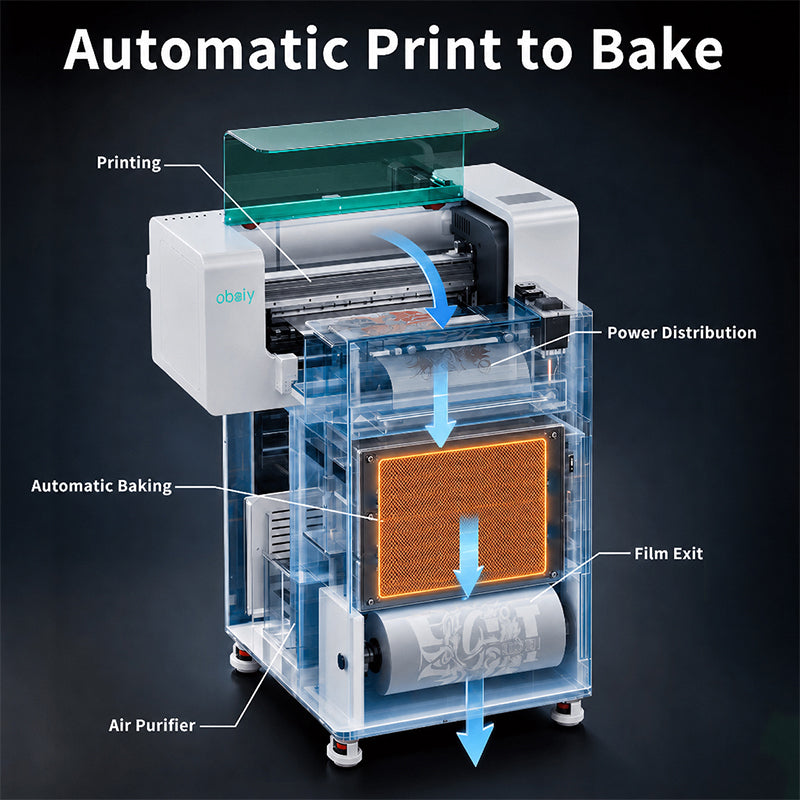
Seamlessly combining printing, shaking, and drying, the obziy DP1 eliminates manual powder handling in one intelligent system. With 4-stage air filtration and a compact design, it brings clean, industrial-grade production to any retail store or home studio.


Best DTF Printer for Small Business in 2026


Why Choose an obziy All-in-One DTF Printer?

Built-in Quad Filtration
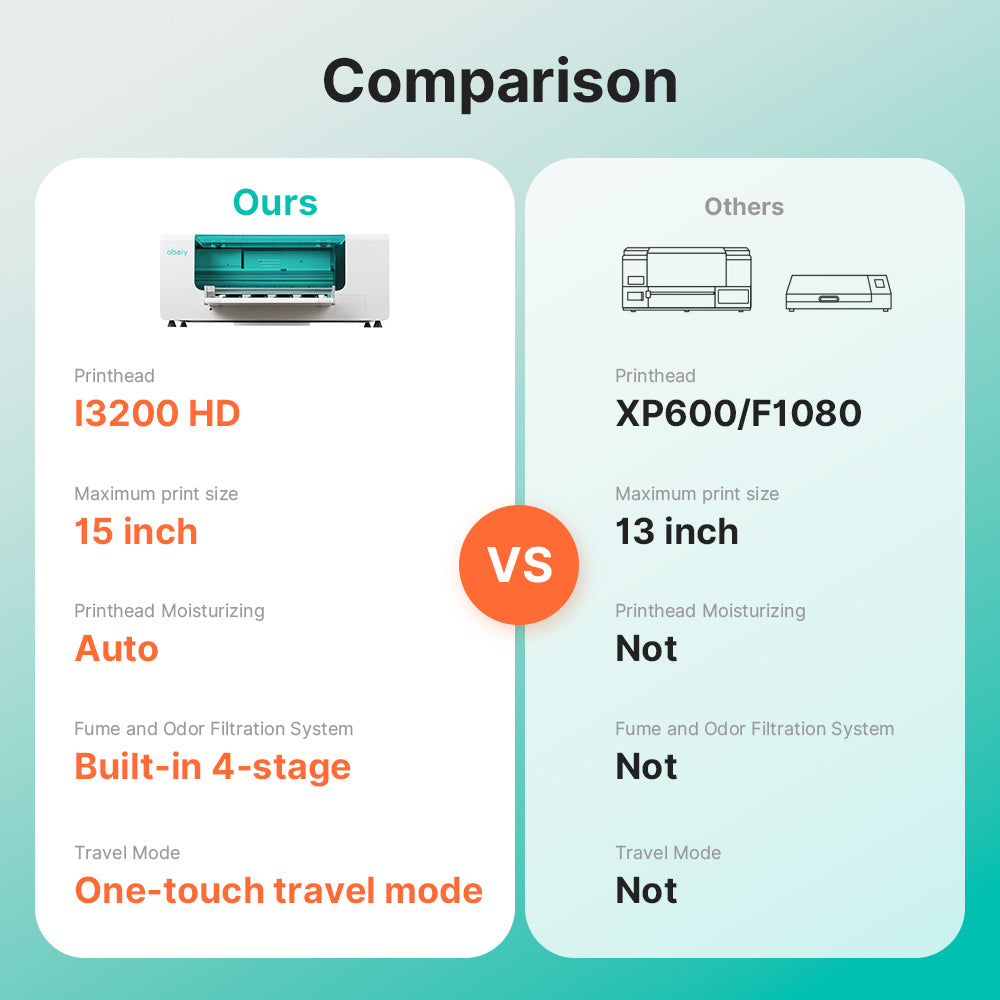
Our advanced 4-stage filtration system actively removes harmful particles and odors, protecting your respiratory health during every print session. No separate air purifier needed—just replace the filter regularly for continuous protection.

Epson I3200-HD Printhead
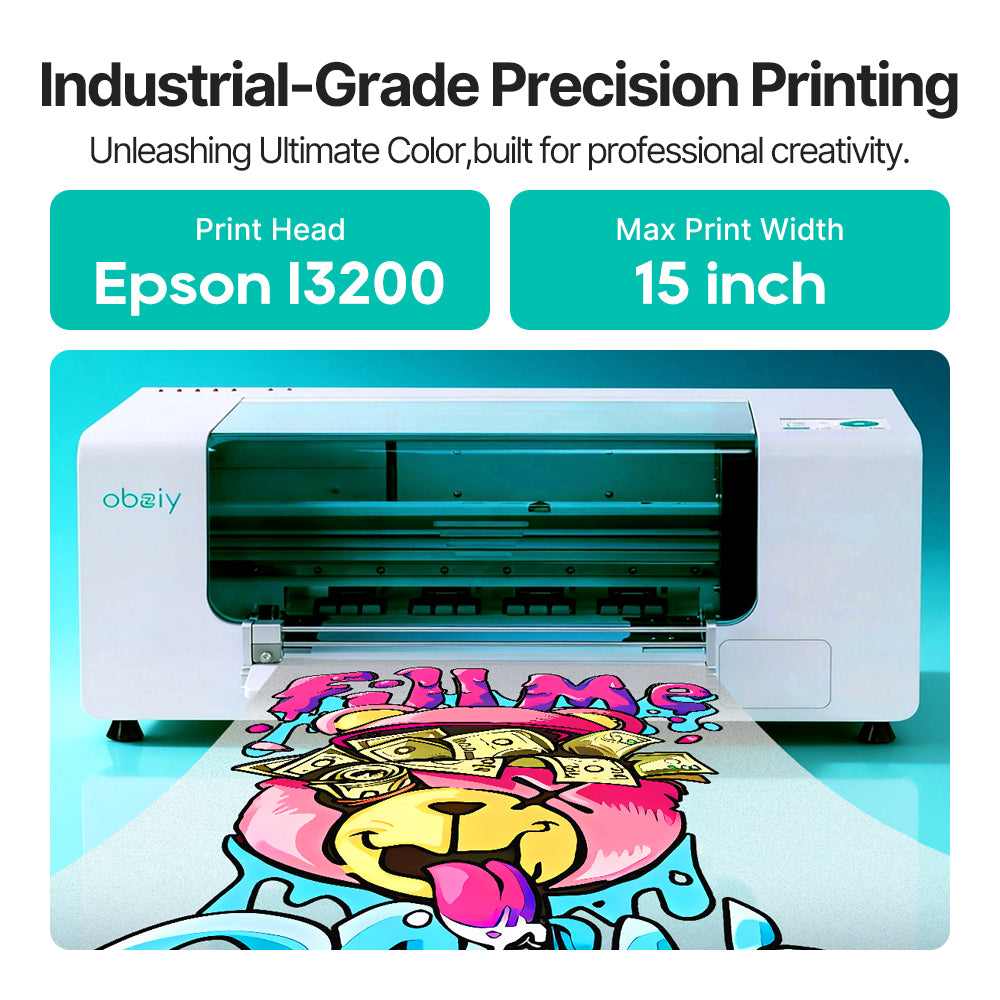
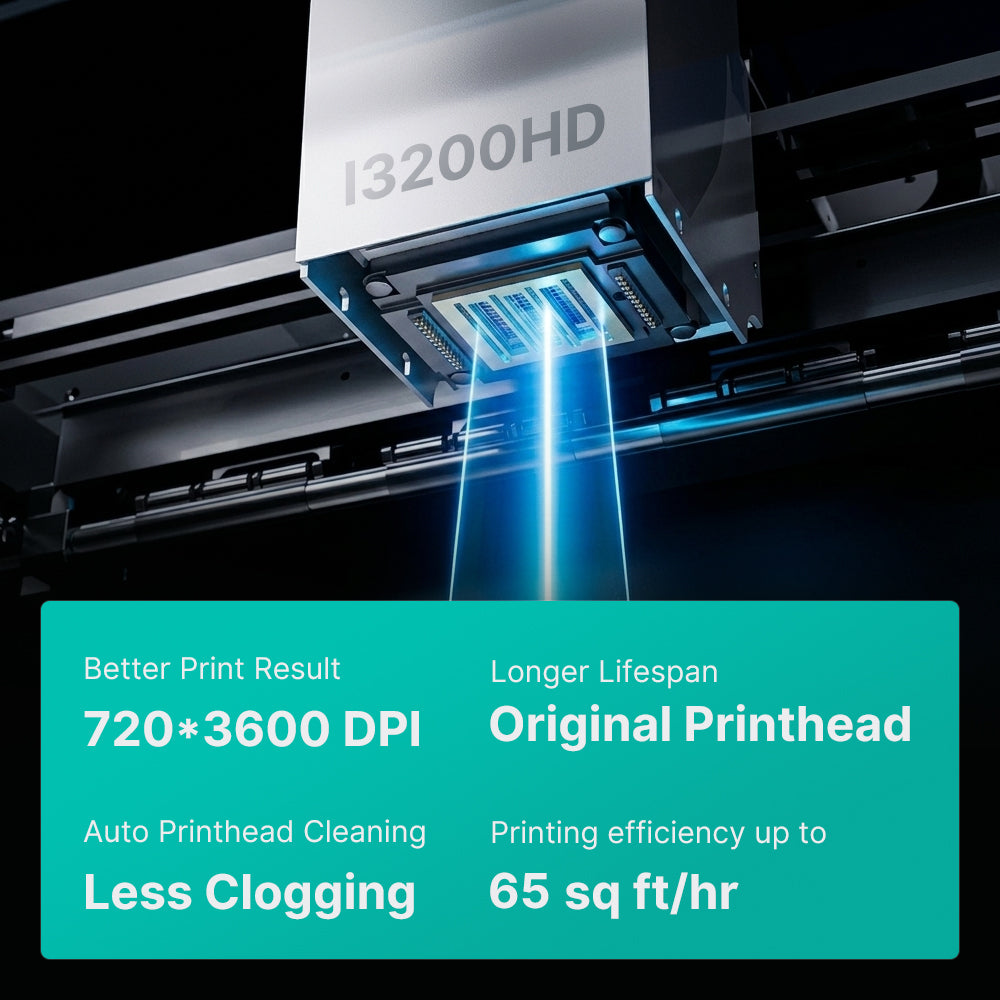
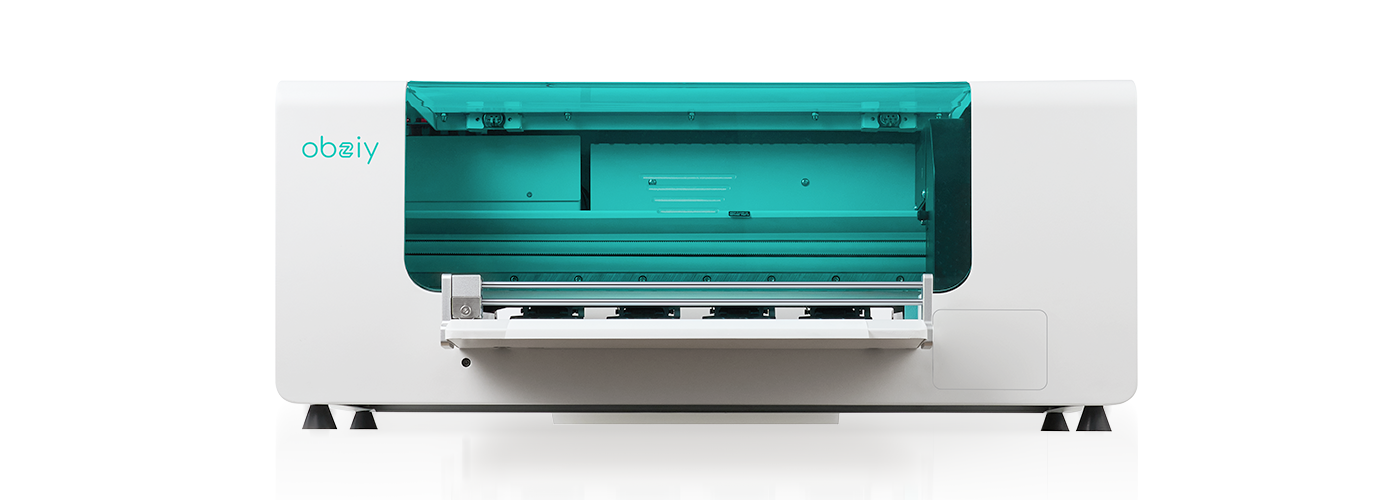
Powered by Genuine Epson I3200-HD Printhead — 3,200 precision nozzles deliver industrial-grade accuracy with commercial efficiency. Variable droplet technology ensures vibrant colors and sharp details on every print. Optimized for DTF printing with smooth white ink circulation.

Automated Maintenance
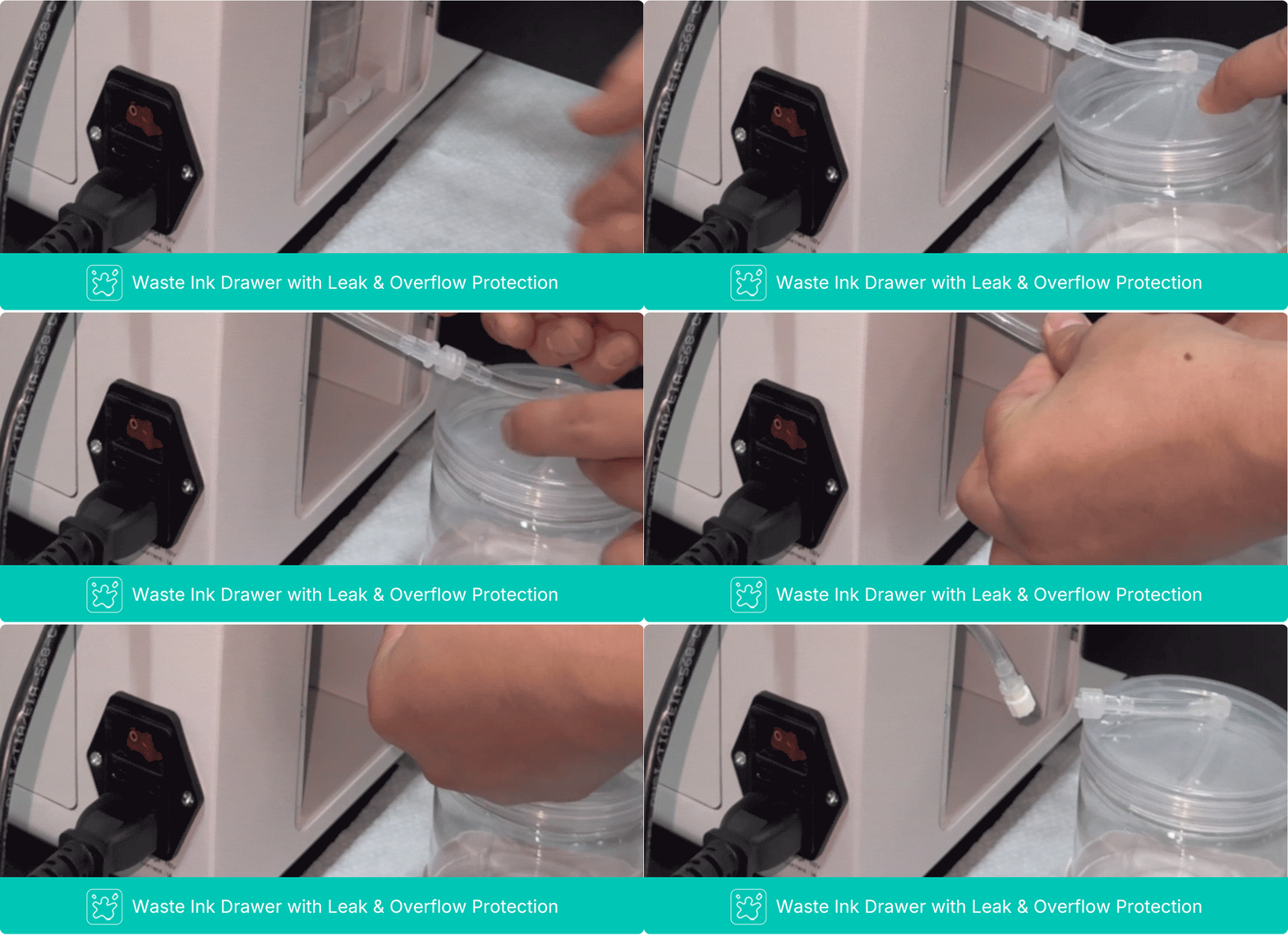
Auto ink filling, fluid level alerts, waste management, built-in drying and nozzle moistening all run automatically — keeping your printer in top shape with zero hassle.

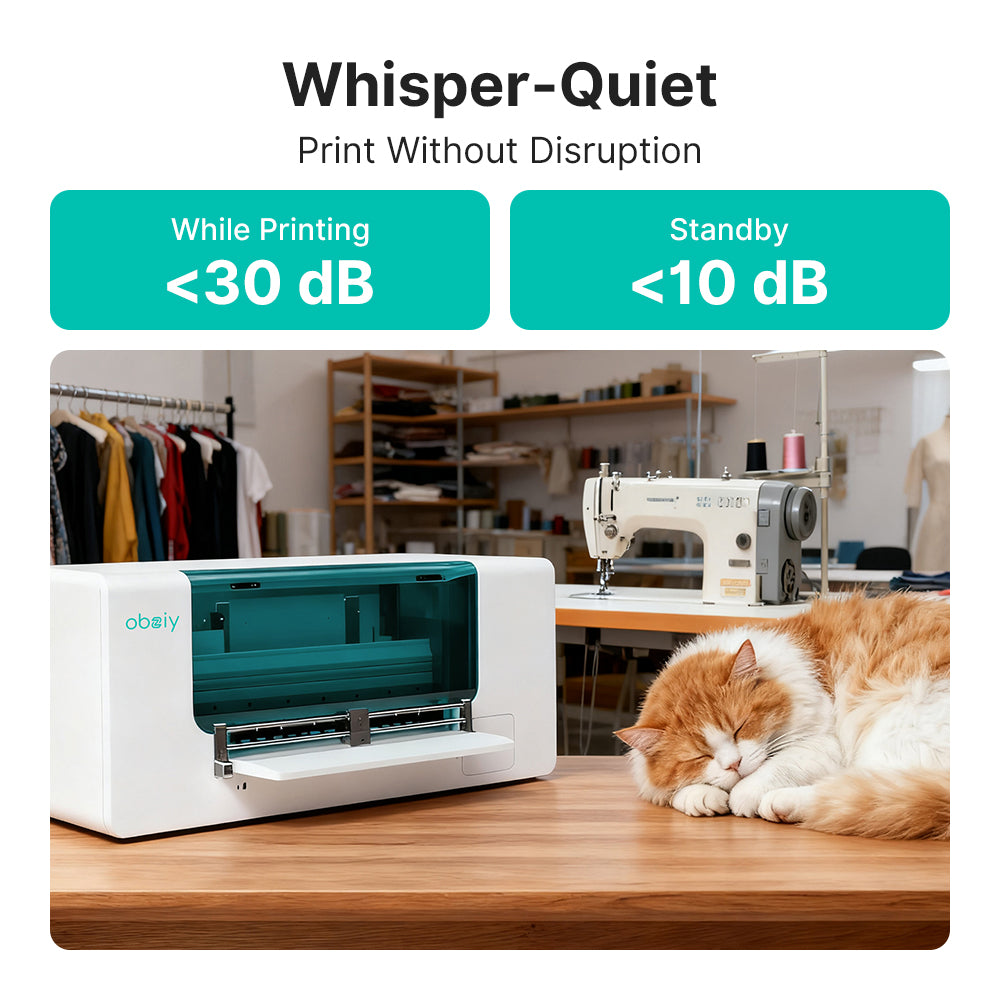
Print Noise: Under 30 dB
obziy DP1 Series runs at less than 10 dB in standby and under 30 dB while printing — quieter than a library. Perfect for home studios, small shops, or any workspace where silence matters.

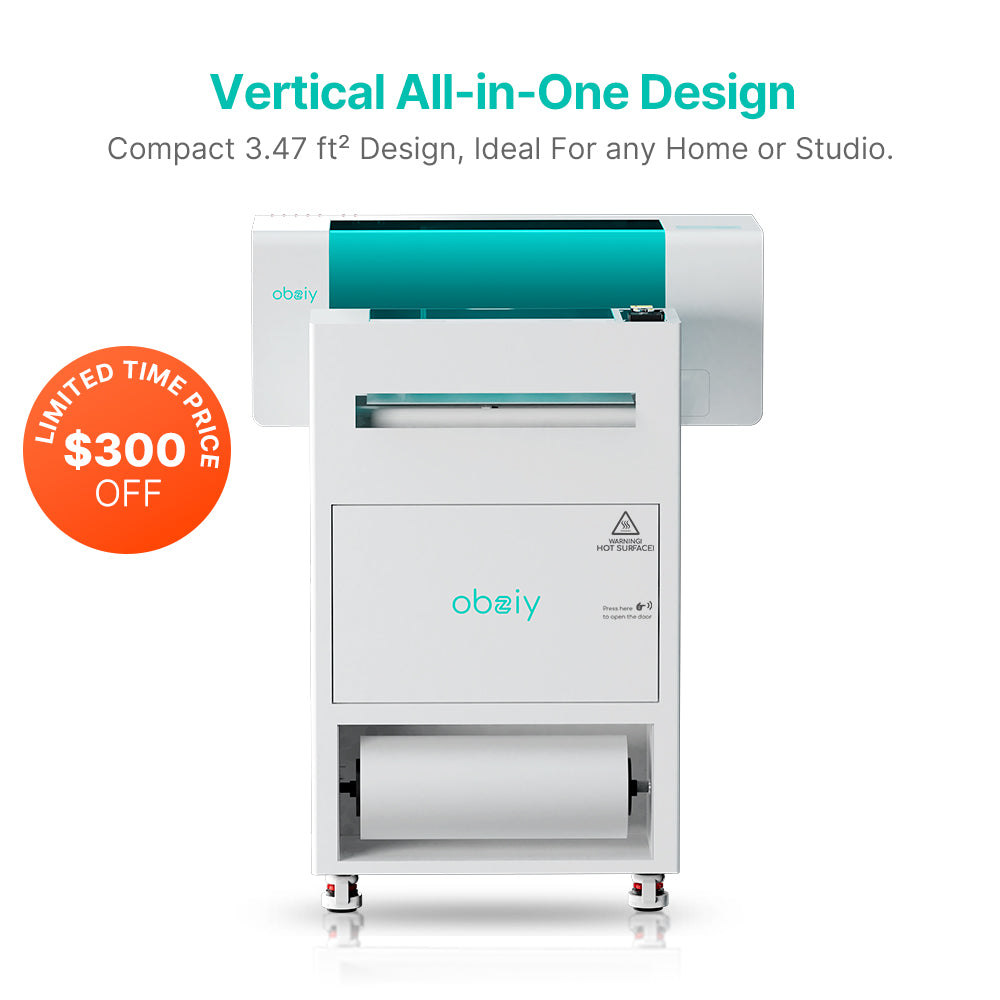
Most Compact Shaker Oven
With a compact base of just 3.47 ft², you can set up a fully functional custom printing station in any corner. Save on rent, expand your services.
Designed for Ease, Built for Health
High Precision -Every Detail, Every Color
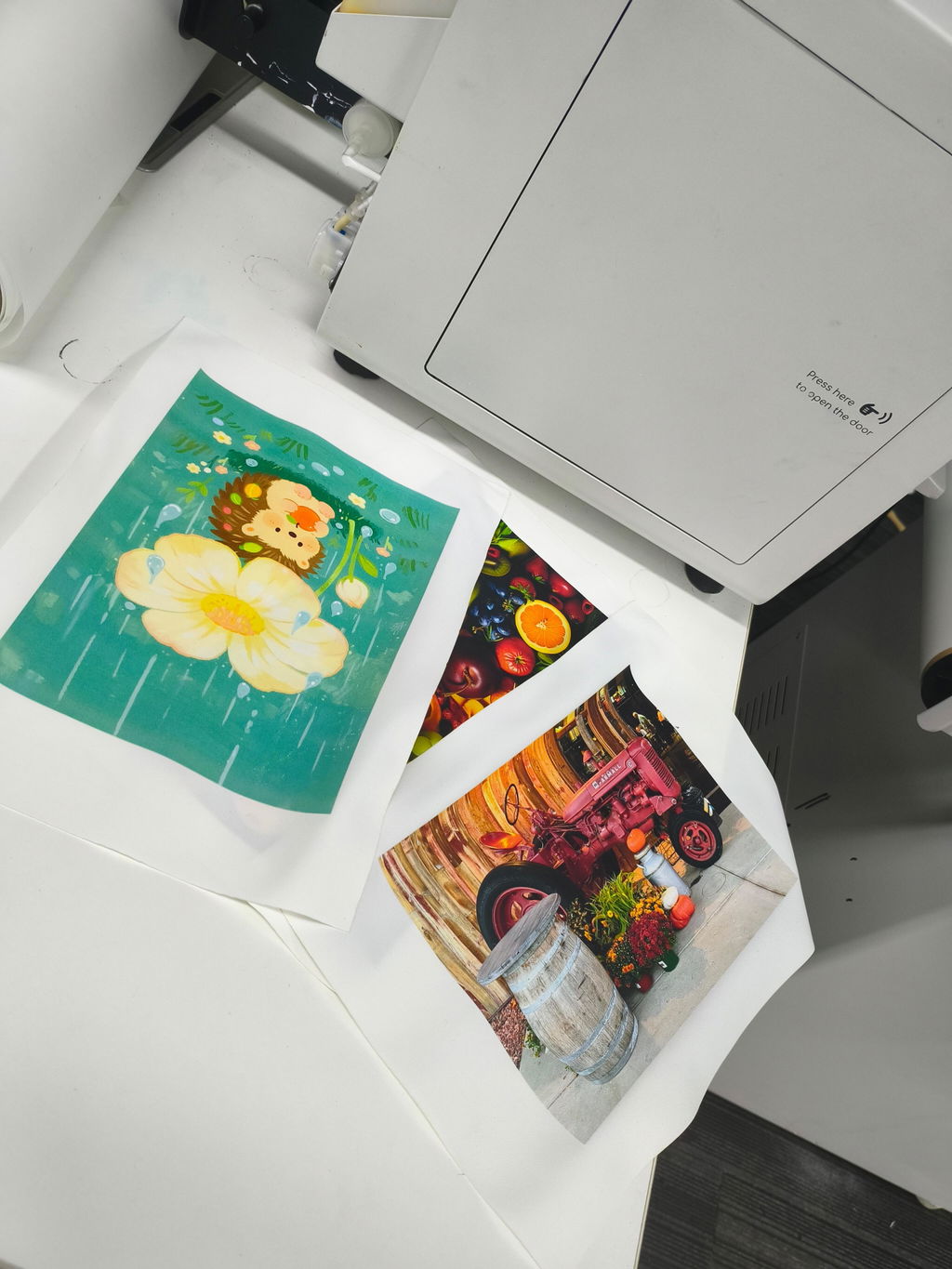
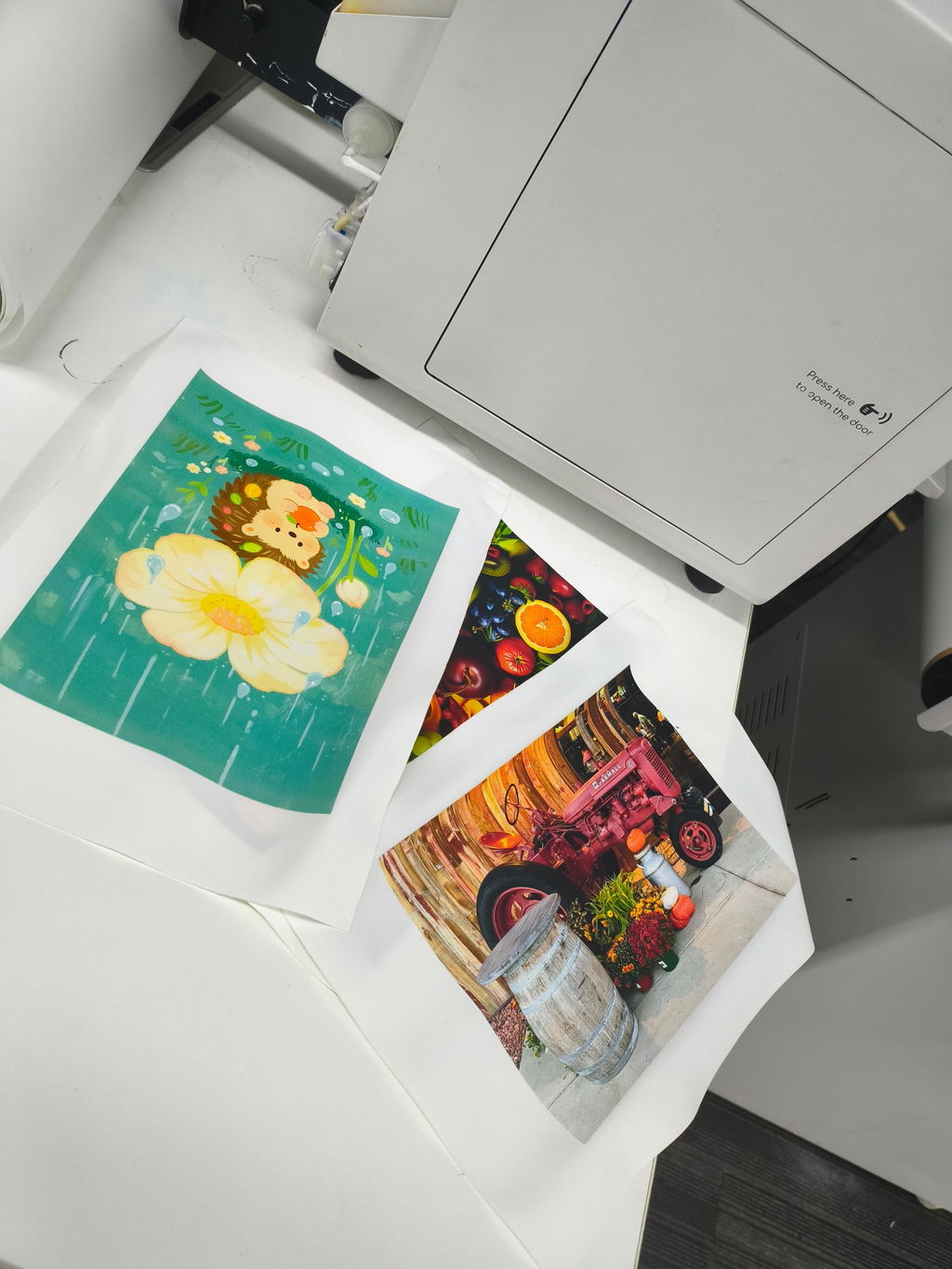
With a maximum resolution of 720×3600 DPI and finely tuned ICC color curves, obziy DP1 Pro reproduces designs with sharp detail and vivid, true-to-life colors. From subtle gradients to bold graphics, every print comes out crisp, consistent, and professional.

720*3600DPI

other types
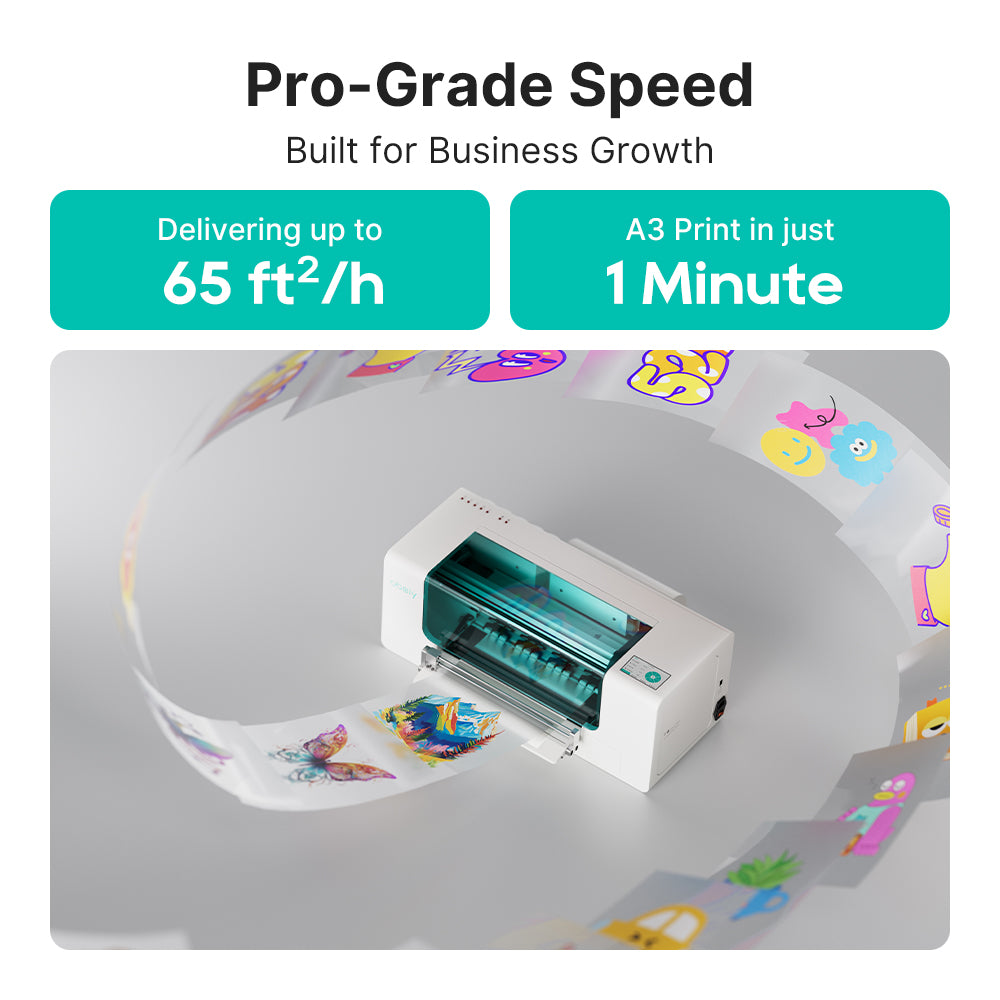
Pro-Grade Speed-Built for Business Growth.
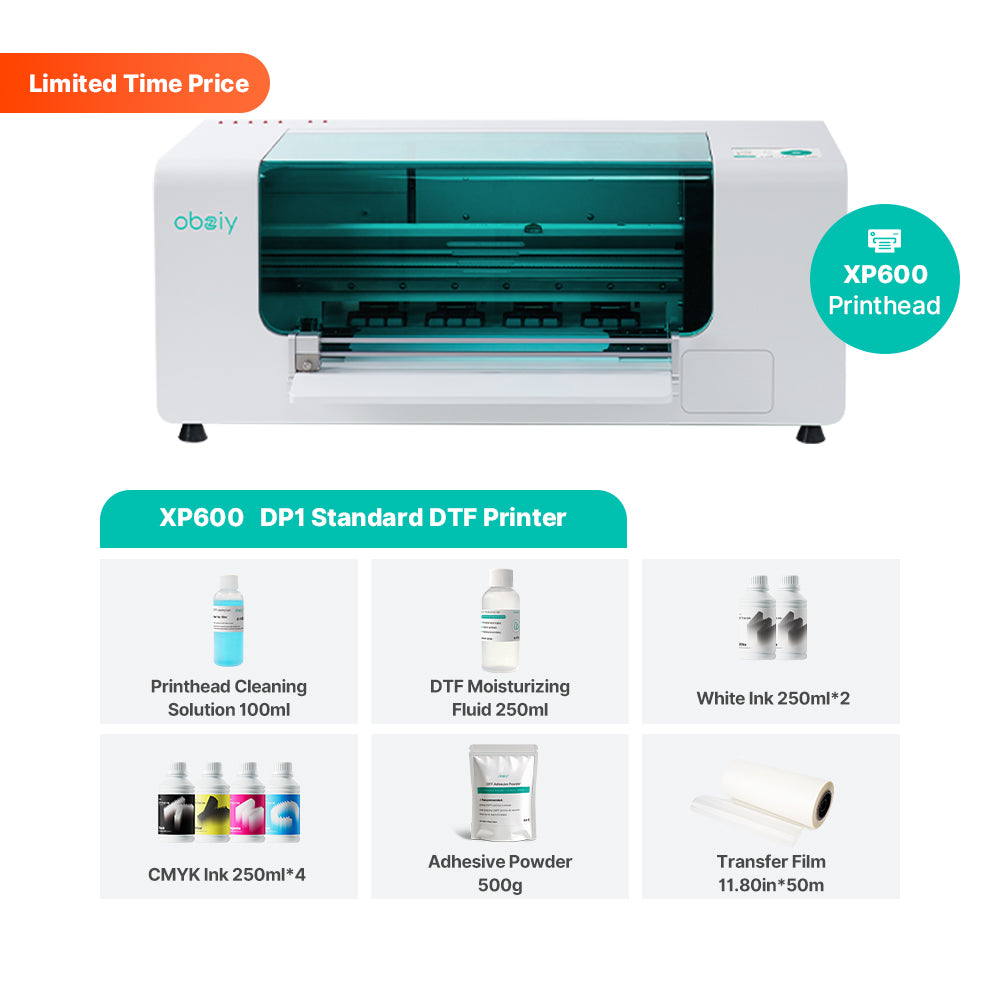
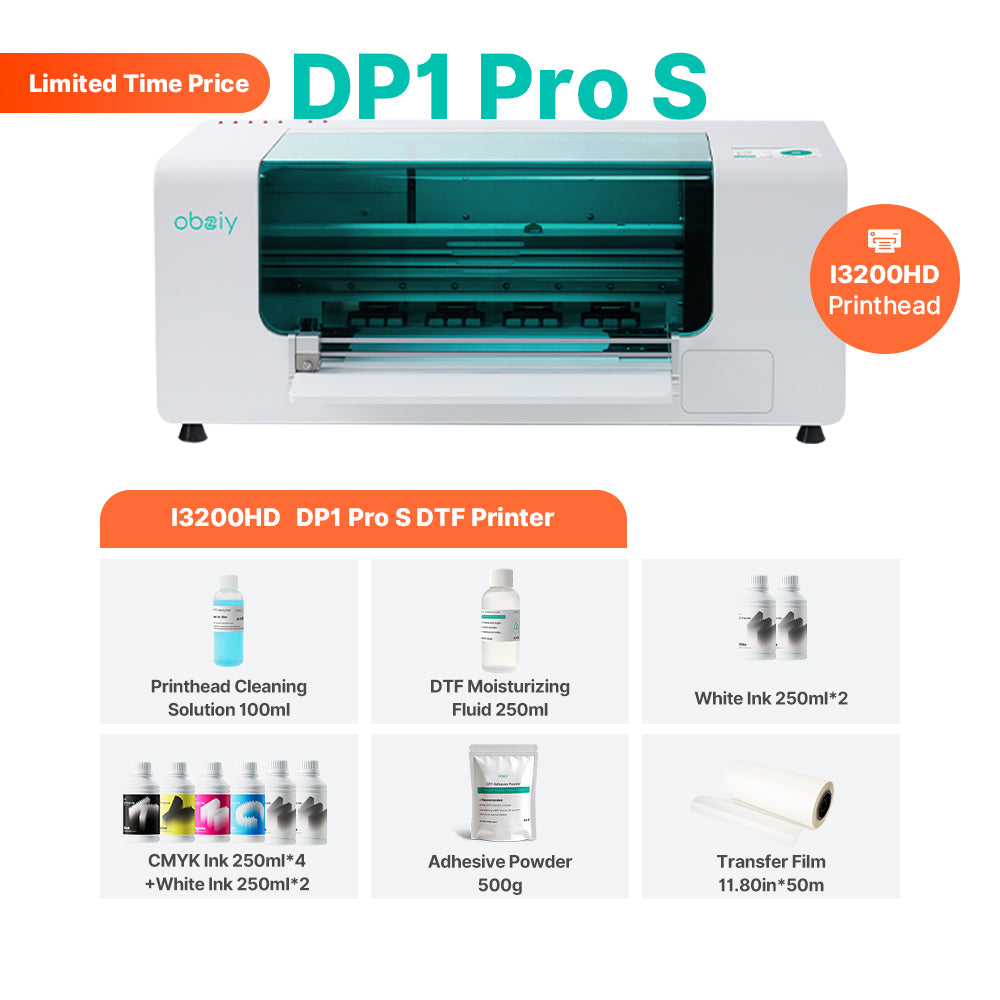
obziy DP1 Pro S is powered by the flagship Epson I3200HD printhead, delivering up to 65 ft²/h — an A3 print in just 1 minute. In comparison, the DP1 with XP600 (mainstream choice) reaches 26.85 ft²/h, or 3 minutes per A3. With 3× the speed of entry-level models, DP1 Pro S keeps your production line moving as your orders scale.

With industrial-grade speed and efficiency, obziy DP1 Pro S can produce up to 841 pieces per day, turning out high-value custom apparel at scale. Thanks toits low operating cost and strong margins, you can recover your investment inas little as one day of production.
Consumable costs are extremely low.
The cost of consumables for printing each A3-sized image is only about US $0.30.

TravelMode-Low Power, Silent Standby
obziy DP1 Series enters an ultra-low power, noise-free standby mode and automatically maintains the printheads. This keeps the printer in optimal condition without any manual effort, so it’s always ready when you are.
2-in-1 Software + Interactive Touch Screen


2-in-1 Software

Simple Software Installation

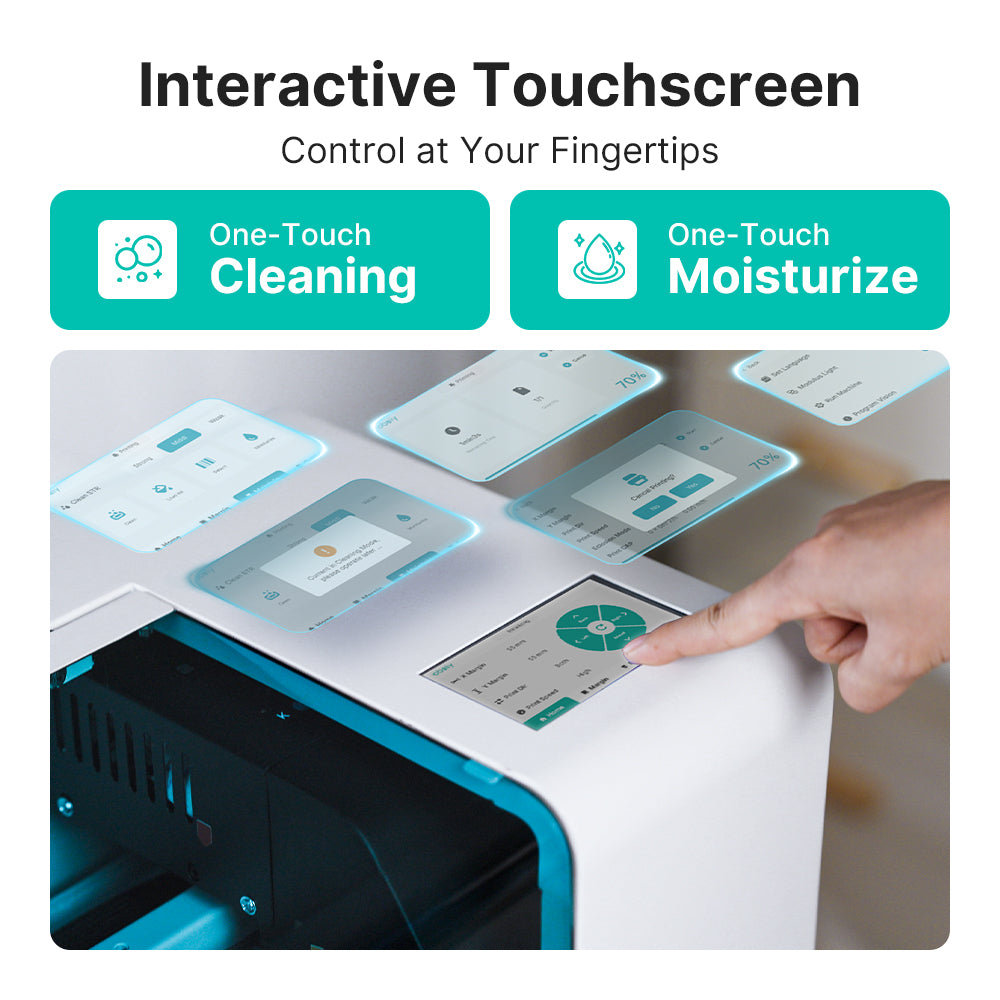
One-Touch Cleaning

One-Touch Moisturize
Powered by the ZRIP 2-in-1 integrated design and print management software, the obziy DP1 series lets you set up and adjust files in just minutes. At the same time, you can manage printing, tweak settings, and perform one-touch cleaning or moisturizing directly on the machine—no external laptop required.
One-Step Setup - From Box to Print in Minutes
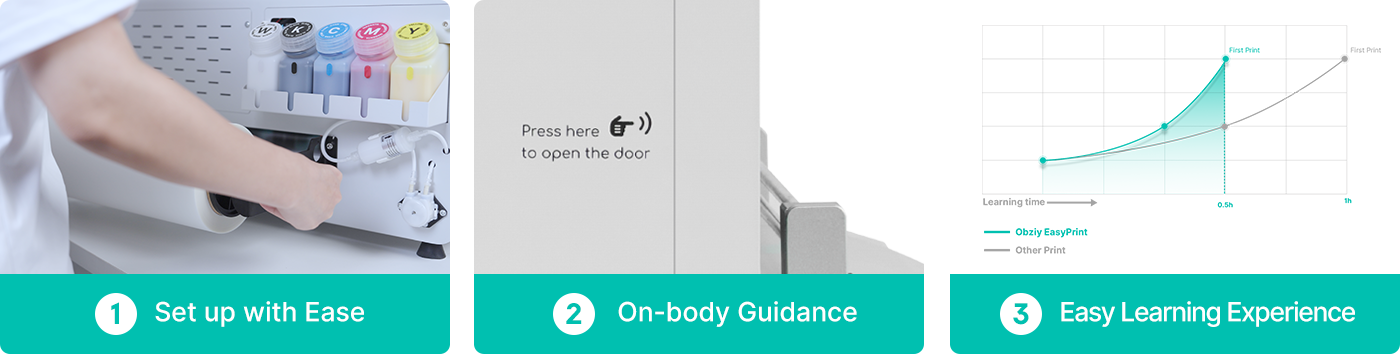
obziy DP1 Series requires minimal assembly and comes with on-body guidance, soevery step — from setup to your first print — is simplified and seamless. No technical background is needed: just plug in, follow the prompts, and start creating.
obziy DP1 vs Traditional Printers

Industrial Solution

obziy DP1 Series

Others
Reliable After-sale Service


One Machine, Endless Possibilities
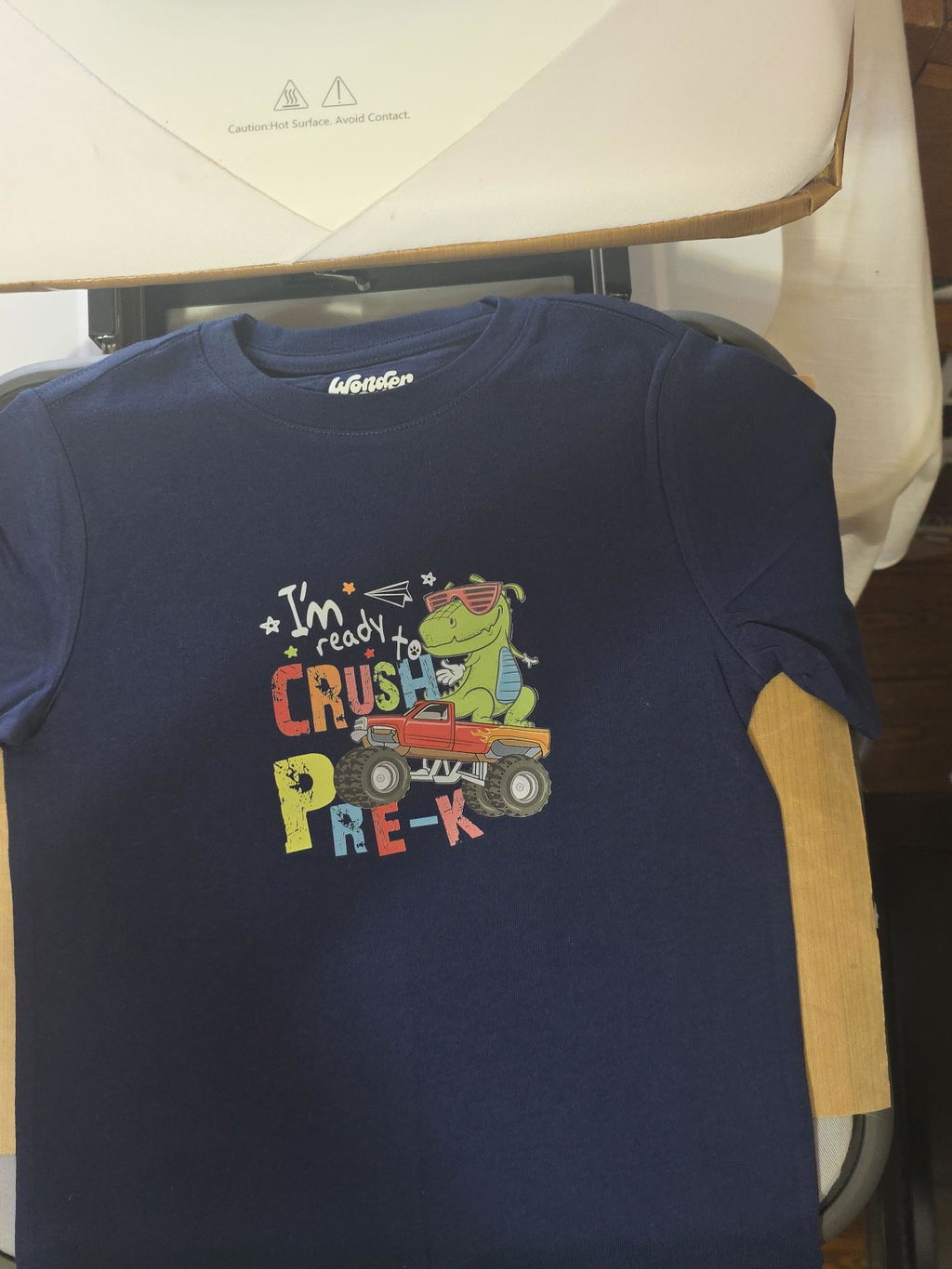
Works on Almost Any Fabric. From 100% cotton to dark polyester and canvas—if you can imagine it, obziy can print it.









Easy Steps,Ideal for First-Time Users
The Easiest Way to Start a Profitable Custom Apparel Business

1.Design

2.Printing

3.Powdering

4.Curing

5.Heat Transfer

6.Peeling
Profitable Printing Solutions

See How They Comment On obziy

911 Studios
YouTube Creator

Hoffman Engineering
Digital Fabrication Expert

Daisy Multifacetica
Craft Expert

Creations with Tory
DTF & Sublimation expert

Tripods Garage
A DIY enthusiast

Michelle
Blog author

New to the obziy DP1 DTF printer?
Join our community forum to discover more with the help of our supportive community!
Join Community
FAQs
Q1: Can I use obziy if I'm a complete beginner?
Yes. We’ve automated the hard stuff—white ink circulation, moisturizing, and cleaning—without hiding it behind a locked "App." You get professional results with a beginner's learning curve.
Q2: What kind of support do you provide for beginners?
We provide a robust support framework. Beyond our comprehensive 24/7 User Guide, we offer direct technical assistance and remote support for complex needs via our official Support Page.
Q3: Is the Epson I3200HD head worth the upgrade over an XP600?
Absolutely. The I3200HD offers a true 3600 DPI resolution and significantly higher firing frequency, delivering industrial-grade longevity and far superior fine-line detail.
Q4: Isn't a "Dual Head" printer faster than obziy's single head?
Not necessarily. A single I3200-A1 has 3,200 nozzles and fires at much higher frequencies than the consumer heads found in dual-head setups, without the risk of registration misalignment between two heads.
Q5: Why does "Other Brand" resolution look grainy?
Graininess comes from low DPI or poor ink management. Most desktop brands max out at 1440 DPI, while obziy’s 3600 DPI allows for microscopic ink drop placement for photographic gradients.
Q6: How do you handle white ink clogging during humidity changes?
The DP1 series features automated white ink circulation and timed stirring. This keeps pigment in suspension, reducing head clogs by 30% compared to converted consumer printers.
Q7: What is the "real-world" maintenance time required?
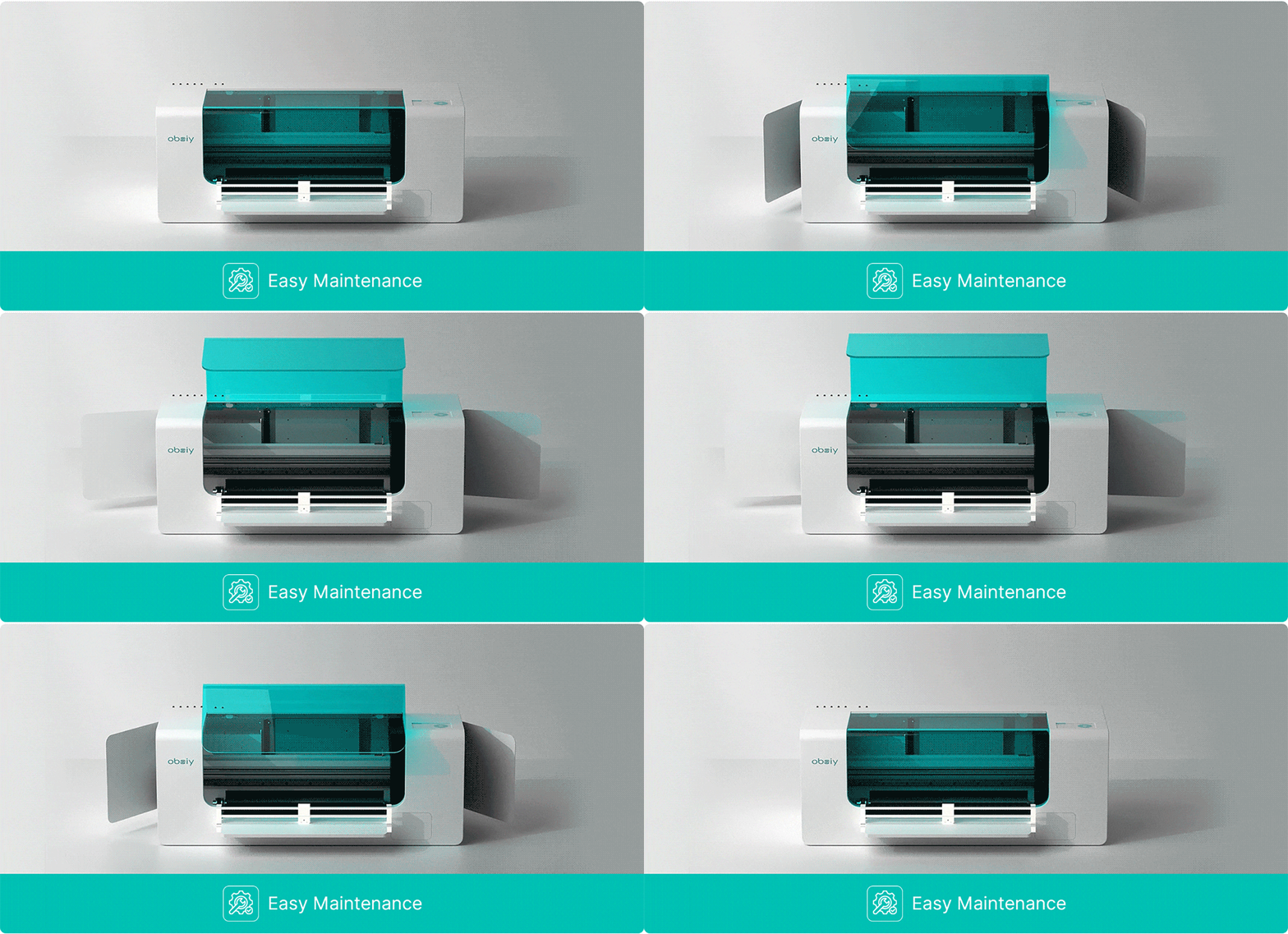
Daily maintenance takes less than 5 minutes. The magnetic dual-door design gives you instant access to the capping station, making upkeep clean and fast.
Q8: Can this machine handle 100-meter film rolls?
Yes, the DP1 series supports continuous roll feeding with a built-in tension system, perfect for high-volume production runs without tracking issues.
Q9: Does it come with ICC profiles?
Yes, ZRIP includes pre-loaded ICC profiles specifically calibrated for obziy ink and film sets to ensure screen-to-print color accuracy.
Q10: How do the Heat Press Presets work with my DP1?
obziy products are a unified ecosystem. The Auto Heat Press features native DTF/DTG modes pre-calibrated for DP1 film profiles, eliminating trial and error.
Q11: What is the cost per square meter for ink and film?
The DP1 is optimized for efficiency. With a 40cm short film path and precision ink delivery, production costs are roughly 40-50% lower than buying pre-printed transfers.
Q12: Is it loud enough to require a separate shop?
No. We’ve used silent stepper motors and a damped chassis. It runs at <30dB, making it perfectly suitable for a spare bedroom or home office.
Q13: What happens if I outgrow my current DP1?
obziy is modular. You can start with the DP1 printer and seamlessly add an automated shaker or advanced heater as your order volume increases.